Back-to-school shopping for college students means more than just bundling them off with a backpack and a reminder to not mix white clothes with colors. Today, it’s all about tech.
My son heads off to college in roughly six weeks. But as a techie dad, I’ve already started prepping what I want to send with him. It’s nerve-wracking, but also sort of fun! I may not be able to force him to write that paper a week before it’s due (as opposed to a few hours) but I can at least make sure his laptop isn’t going to run out of juice.
Here’s a sneak peek at my shopping list of the essentials. I’ll explain why, and point you to some items I consider optional later.
- Laptop
- Smartphone
- Belkin surge protector: $28.95
- Under-desk cable-management tray: $15.99
- Laptop drawer: $35.09
- Acer 27-inch 4K display: $179.99
- Ugreen portable USB-C power bank: $69.99
- USB-C hub: $49.99
- GaN charger (160W): $64.99
- USB-C cable (6 feet): $12.99
- Anker SoundCore noise-canceling earbuds: $27.99
- LED desk lamp: $19.99
- Subtotal: $505.26
The first step, though, is planning. Dorm-room electronics and student backpack tech are all about a tight, efficient use of space, minimal weight, and low price. Going to class is very much like packing for a sales seminar: your student will be on the go for most of the day, carrying everything they’ll need on their back. How to decide?
Your first stop: your college’s “what to bring” page. Each university handles this differently. Oregon State divides up the list between what to bring, what to leave home, and optional items. UCLA essentially tells students what not to bring. Rutgers includes a basic checklist. My son’s college actually provides some tech tips, including the fact that there is no Ethernet in the dorms. Find it. Read it.
Stalk dorm-room photos. These days everyone takes photos of everything, then splashes them onto social media. I would be shocked if you can’t find a representative photo of your student’s dorm room, even if you haven’t seen it in person. What you’re looking for aren’t promotional shots, but how everything fits together, like this (slightly depressing) photo of a University of South Carolina dorm room, published by the university.
I’m looking at desk space, and desk construction, including the room’s vertical height. If you visit beforehand, embarrass your kid and take photos and take measurements. (When I went to school, some enterprising engineering / architecture students added an entire second story to their dorm room.) So your kid has a gaming desktop that he wants to bring. Will there be room?
Bring a good backpack. First-year students typically live on campus, but crossing from one side to the other might require a long hike or a long bike. It needs to be comfortable, light, and padded.
Chromebooks are out. Most universities that I’ve researched have totally ruled out Chromebooks, because there’s a risk that your student may need specialized applications for a given course. (That’s probably more likely in a STEM major.) And while my son would probably be perfectly fine using a Windows on Arm machine, I’m tentatively ruling that out too. It’s just another potential point of failure, albeit an unlikely one.
Styluses are in. I was a little surprised to see that tablets or a laptop with inking capabilities were suggested as a possibility. If a professor makes a PDF presentation available, jotting some e-inked notes on it might be helpful. For STEM majors, the deadly organic chemistry class might mean scrawling a molecular diagram — you can’t really type that. I wouldn’t call this a requirement, but a consideration.
Smartphones are a must, but not just for messaging friends. Many universities are using them for two-factor authentications for approved applications.
What to bring: dorm room
Laptop
A laptop, as you well know, is an absolute college requirement. I’m skeptical about gaming laptops, though. Four or five pounds on your back during those first, scorching days of the fall semester will get old fast. Instead, you student will want a thin, light laptop with long battery life and a moderately powerful CPU.
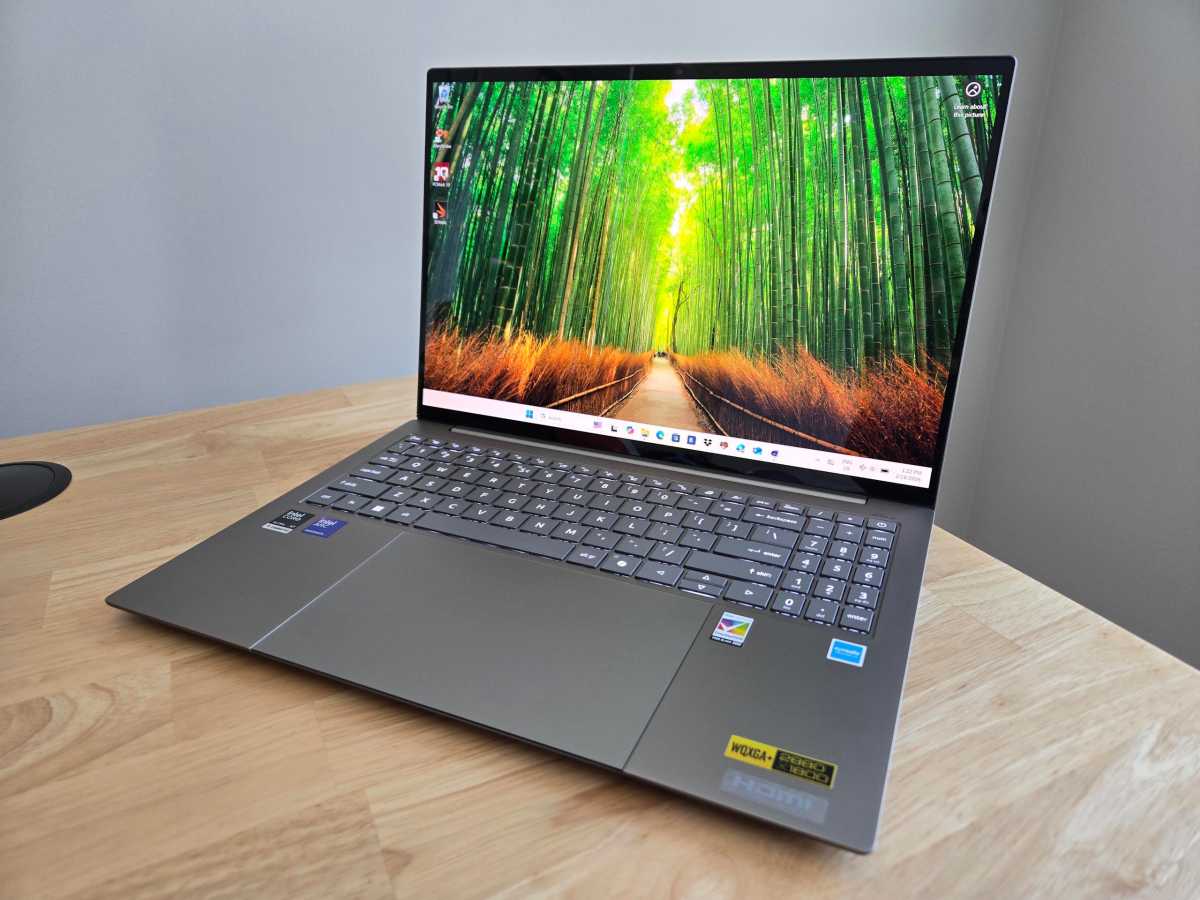
I would absolutely agree with our top pick for the best laptop for college students, which right now is the Acer Swift 16 AI for about $1,200. (Read our Swift 16 AI review.)
Foundry / Chris Hoffman
Just keep in mind that for most people, four years of college puts a deep strain on everyone’s finances. You’ll want a laptop that will last for four years. This Acer Swift 16 AI and its Core Ultra 200 (“Lunar Lake”) chip should be pretty solid, but consider investing in an upgraded Core Ultra 300 (“Panther Lake”) laptop for a longer lifespan. Just make sure you read the reviews of the best laptops, as there’s a pretty sharp gap in performance between the high-end and low-end processors. (Your game-starved young nerd can game on a Panther Lake laptop, however.)
Yes, a lot of families buy their kids Macs. We avoid them, but they’re good machines.
Power strip and under-desk cable-management tray
The catch here is that you’ll need to avoid most of the more innovative power options from no-name suppliers on Amazon. If it’s not UL (Underwriter Laboratories) safety certified, leave it home. That’s not my advice; that’s what the college housing administrators say.
Read the descriptions carefully. UL writes the power specification and tests against it; ETL simply certifies the finished product. Be wary: Some power strips will say that the power strip’s cord is UL-certified, but the rest of the unit isn’t.
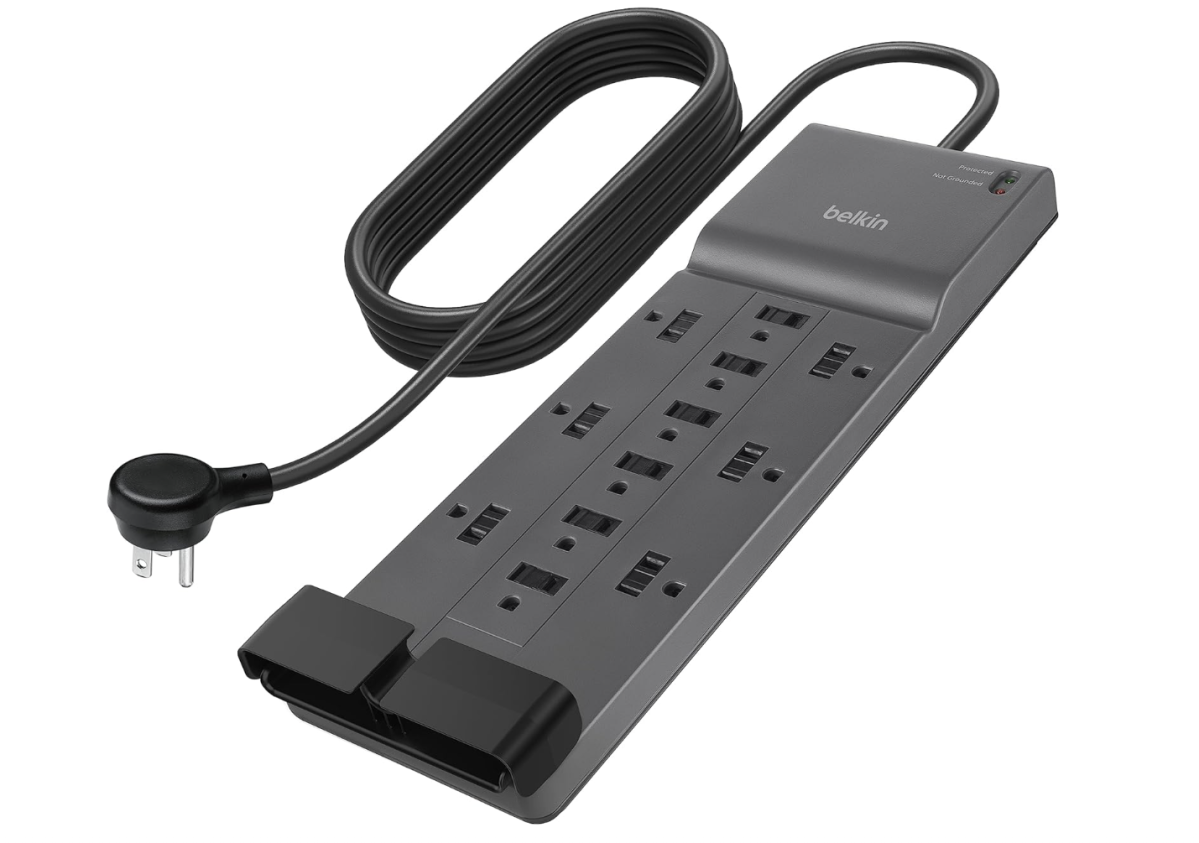
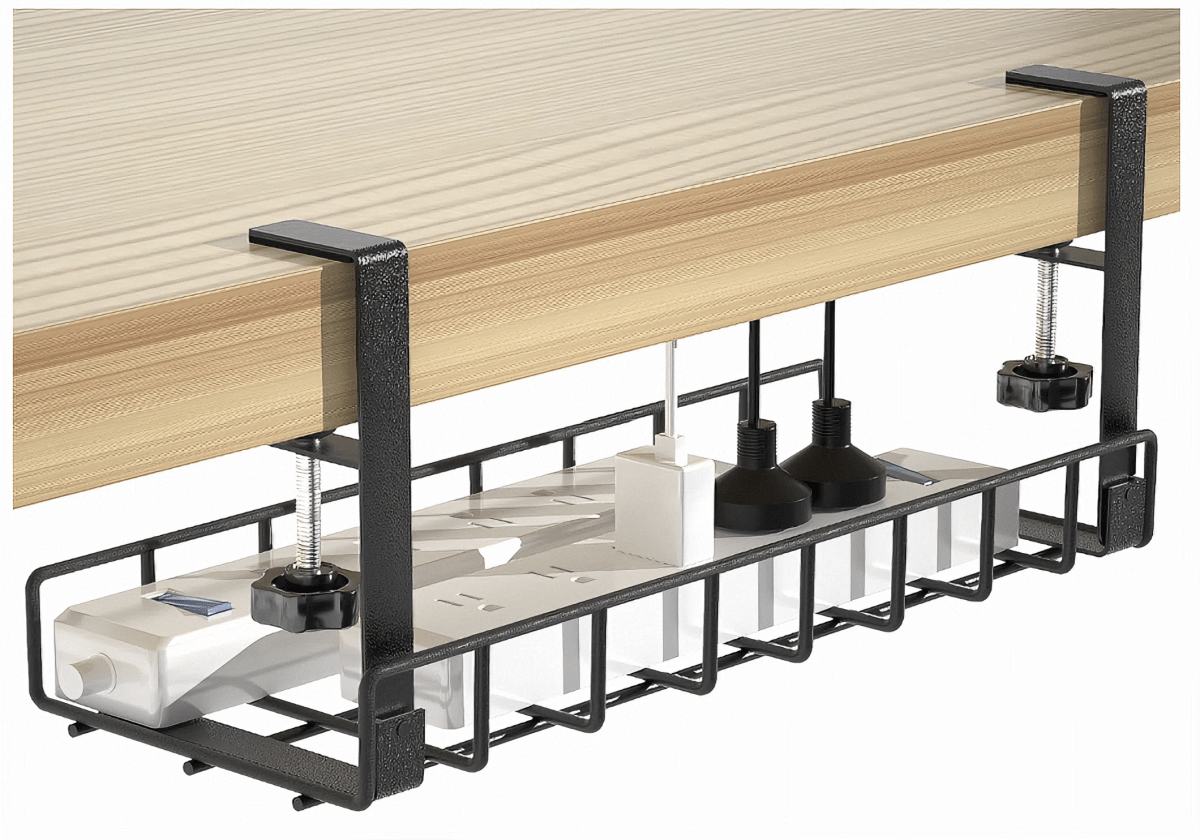
Me, I’m just sending my kid off with this $28.95 Belkin 12-outlet surge protector. The whole thing is UL certified, it can accommodate all sorts of weird plug arrangements, and it can even fit inside this $16 under-desk cable-management tray that my colleague Alaina Yee owns and swears by. The only thing that it doesn’t have is dedicated USB-C and USB-A charging ports.
Still, remember how I suggested stalking the dorm room photos? The cable-management tray clamps on to the desk — but only if there’s nothing preventing from doing so. That SC dorm room above doesn’t look it allows for anything to clamp on to, so under-desk accessories might be out.
Amazon
Otherwise, if the space allows for it, use it!
Laptop drawer
I’m a firm believer that an additional display or two increases productivity by a like amount. Dorm-room desks, though, can be tiny. In this situation, gaining more desk space means building up and down as much as across.
Amazon
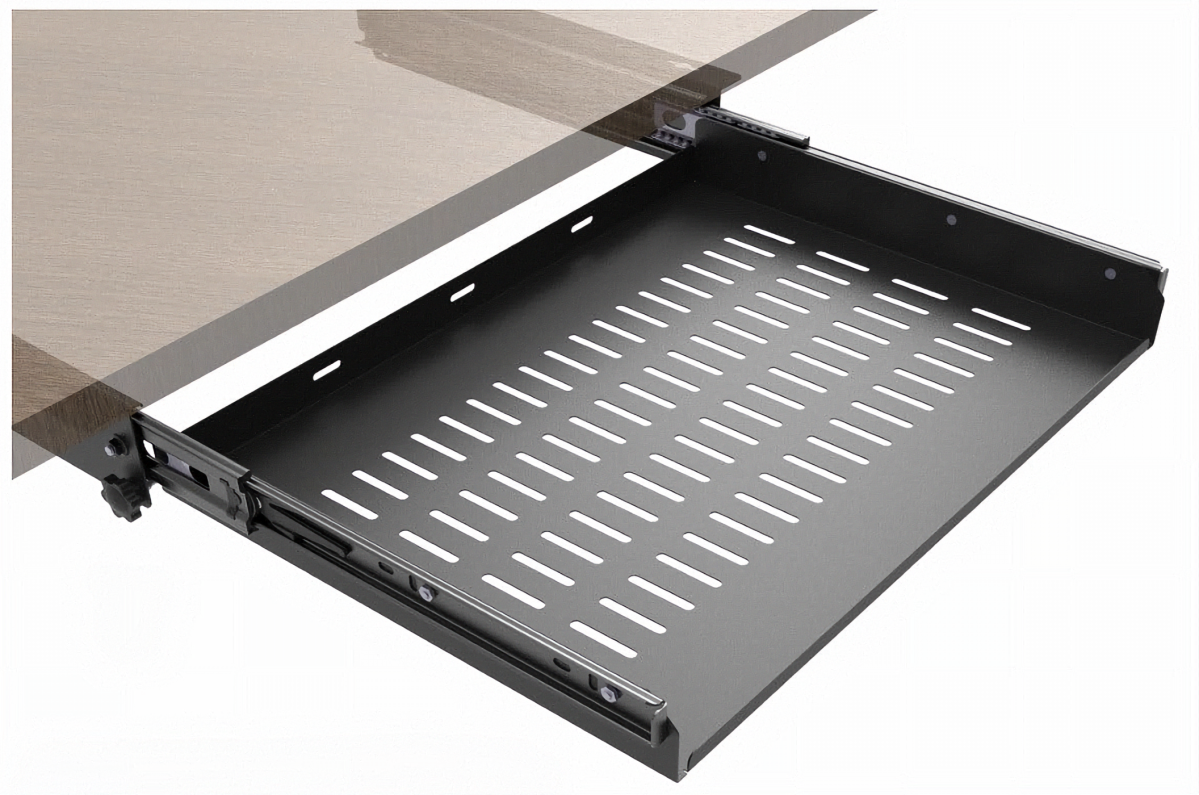
My lovely roll-top desk at home doesn’t offer much horizontal space, either, but it does provide a sturdy keyboard drawer — solid enough to hold a laptop. That’s why I’m investing, not in a keyboard drawer, but in this metal $35.09 laptop drawer (after coupon) with built-in venting. Available in either a 16-inch or a 21-inch size, this metal tray slides in when not in use, keeping the laptop out of the way. Extended, it adds to the available desk space, leaving room on the desk itself for a display or something else.
Monitor options
If you’re a productivity nerd, this is probably the most interesting choice on the entire list. No, it’s not because of refresh rate, size, or even the display type, but the orientation!

Pexels
Narrow desks don’t allow much space for a traditional display, but you might be able to squeeze in a pair of displays that can be oriented vertically, in portrait mode. (Search for displays that can “rotate” or “pivot.”) A laptop combined with a pair of displays in portrait mode might be a perfect addition to a small desk. You’ll probably want to avoid any of the super-fancy OLED displays, but a pair of 27-inch 4K displays for $179.99 apiece isn’t a bad deal, especially as these displays can swap into 144Hz 1080p mode for after-hours gaming.
(Review PCWorld’s best picks for the best monitors for more ideas.)
Alternatively, you could go with an ultrawide. Ultrawide monitors typically provide 1440p resolution, as opposed to 4K, but might be able to use the available space better if they can hang over the sides of the desk. The problem with an ultrawide is that it might get bumped, or the width might become annoying. Prices, too, are all over the map: the Gigabyte GS34WQC, our best pick for a budget ultrawide display, is just $269. But gaming ultrawides can climb to over $1,000, and quickly. That’s too rich for my blood.

Pexels
The third option is simply to buy a traditional, ordinary display. I’d still recommend a 4K display in any event, as the prices are way, way down from what they once were a few years ago, Buy whatever size you’d like.
If you do, though, make me happy and buy a monitor stand to go with it. I really think it’s worthwhile to buy a stand with some built-in storage, perhaps a drawer or or some sort of a cubby. Not only will it make more effective use of your kid’s desk space, but it will provide a spot for things like charging cables, car keys, and other stuff to live. I have this $22 monitor stand with a drawer and pen holder on my shopping list.

Amazon
Finally, there’s the option of a VESA monitor mount. Most displays don’t ship with their stands attached; the flat panel clips into the standing mount. A VESA display attaches via a clamp or screws to the desk, then the faceplate screws into the back of the monitor. (Put your hand out like you’re telling someone to “stop,” and imagine there’s a monitor at the end of it.)
With a mount, the display can be raised, lowered, pivoted, or tilted, and it can make a very effective use of the available space. Remember, that mount can even be swiveled about to face a couch, and most monitors have enough inputs to run a cable to a game console. Just saying.
Our preferred budget mount, the $70 MSI MAG MT201, is shown off on Amazon using a massive widescreen display, but it will handle an ordinary monitor just fine.

Pexels
I’ve never been a huge fan of traditional laptop stands, which acts as a mount for the entire laptop. But at about $16, they’re extremely inexpensive. Yes, you can still use a wireless keyboard and mouse to control the laptop, and that’s fine. I’ve always invested in a laptop with a keyboard I enjoy using, however, and prefer to use that space for a traditional monitor or display. Still, that’s up to you.
LED desk lamp
I ended up with a single room my freshman year because my roommate suffered from Seasonal Affective Disorder (SAD) and had to leave. Today, LED lights can be adjusted in a variety of color temperatures. LED desk lamps come in a variety of shapes and sizes, but this $25 LED lamp offers a variety of brightness levels and lighting temperatures/colors, with a USB-C charging port to boot.
And yes, if all that monitor light blasting out at 2 AM bothers the roommate, they even make monitor hoods. And sleep masks.
Optional:
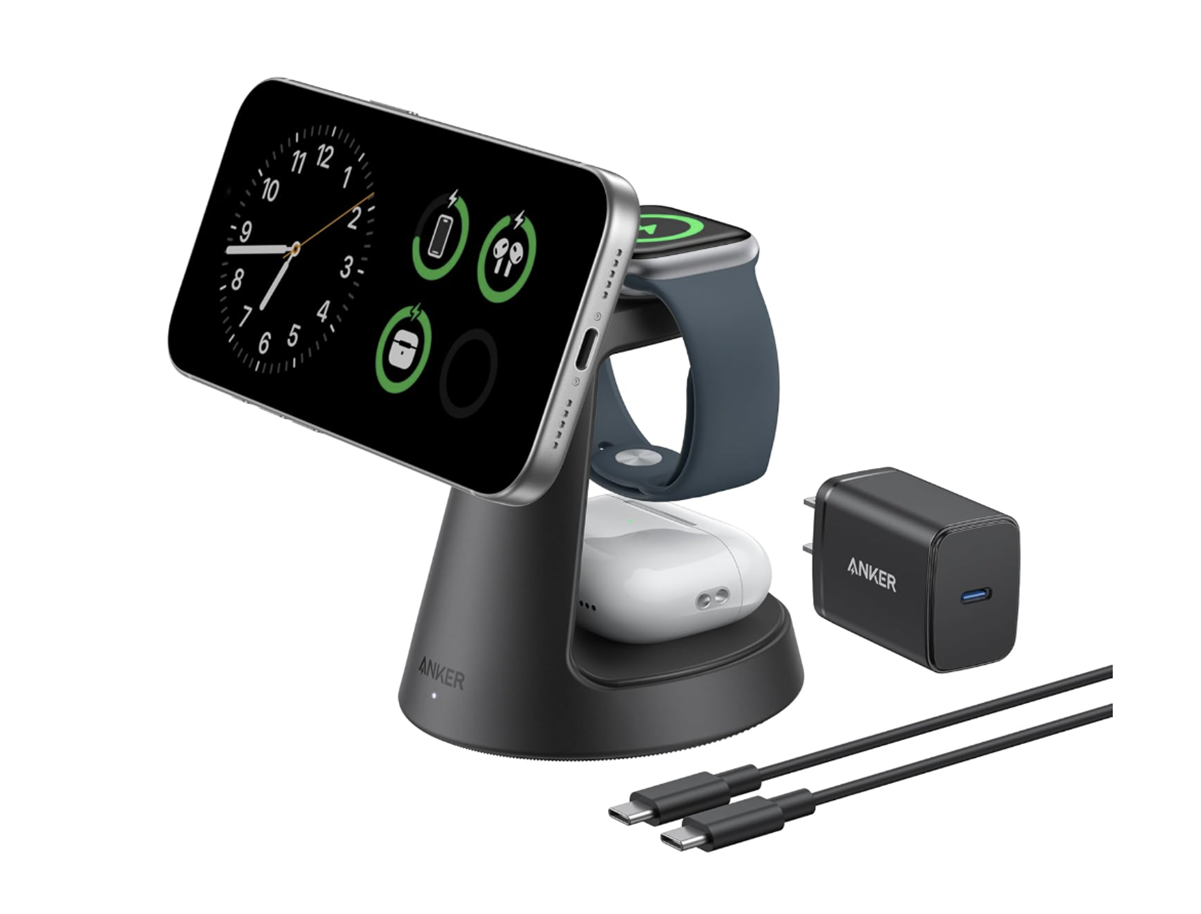
Desktop 3-in-1 charger: If your student has already invested in Apple hardware, then this $72 3-in-1 Anker wireless charger will charge an iPhone (via MagSafe) as well as an Apple Watch and AirPods, simultaneously. Run the cable down to the power strip. Android owners can buy this $25 5-in-1 combo charger instead. Don’t buy one with a clock built in that will shine extra light into the room.
Amazon
Thunderbolt dock: I review Thunderbolt docks, and normally I’d advise getting one for multiple monitors. I’m not sure all dorm desks will actually have room for multiple displays. If you do choose to buy one, pick the $199 Wavlink Thunderbolt 4 dock, as it’s compact, moderately priced and has what you need including power for the laptop. Alternatively, this slightly less powerful $149.99 Anker Nano Laptop Dock provides both a desk dock as well as a portable hub.
VPN: Our list of the best VPNs might come in handy for a student, though I’m guessing school admins already have an idea what weird stuff college students look at. Whether that content is approved or tolerated or blocked probably varies.
Leave home:
Wireless routers. Chances are you won’t have a cable to plug into, and WiFi seems to be the default connectivity solution, anyway.
What to bring: backpack
Smartphone
Your student will need one. Our colleagues at TechAdvisor have some advice for the best deals on the best phones and the best phone deals for back-to-school.
Portable battery pack
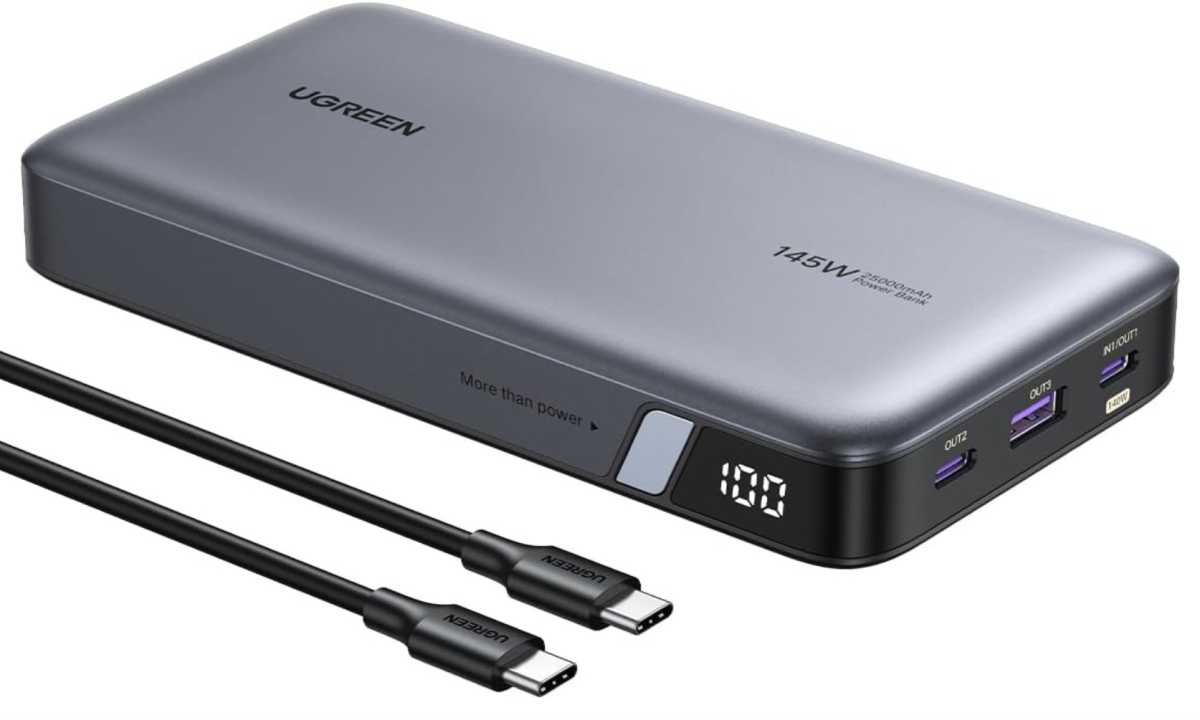
I have no idea if your student will be listening to a professor lecture in a classroom built in the 1970s, or a modern, fully-fitted lecture hall with power outlets at each seat. Be prepared and bring along something like this $70 Ugreen portable power bank. With 92.5 watt-hours of power (99.9Wh is the maximum allowed on airplanes) and 145W of power, that’s enough to recharge a typical laptop entirely with some power left over for a phone.
Amazon
With power banks, you want to make sure that you have enough available power to charge a laptop’s battery to capacity (which requires about 60-70Wh) at the fast-charge speeds that can get it done quickly. It won’t be a problem for phones, as most smartphones charge at about 80 watts via a cable, but most laptops use 100W or so. (More watt-hours equals higher battery capacity, more watts equals faster charging speeds.)
This Ugreen battery pack adds about a pound of weight to a backpack. That’s noticeable, but not overwhelming.
USB-C hub
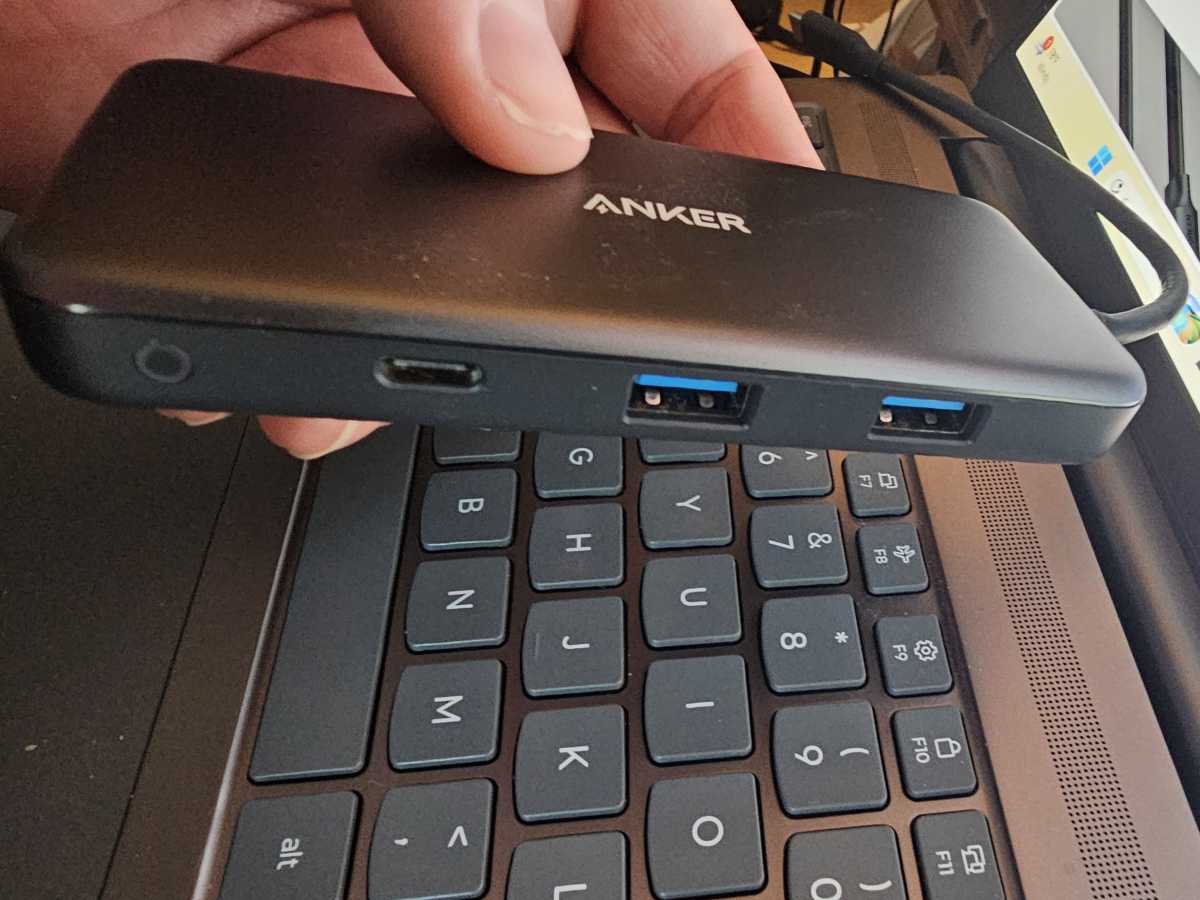
It’s very possible that your student’s university will have docking stations to plug into while at the library or a study hall, but the best USB-C hubs and dongles are cheap and flexible. Anker’s $50 8-in-1 USB-C hub has continued to be my default favorite for months now.
Mark Hachman / Foundry
This hub provides all the I/O that you could want, with USB-A and USB-C inputs, SD and microSD card slots, and even Ethernet. USB-C power input is also supported — if the power supply or charger can deliver 100W or above, the hub will pass 85W of charging power to the laptop.
GaN charger
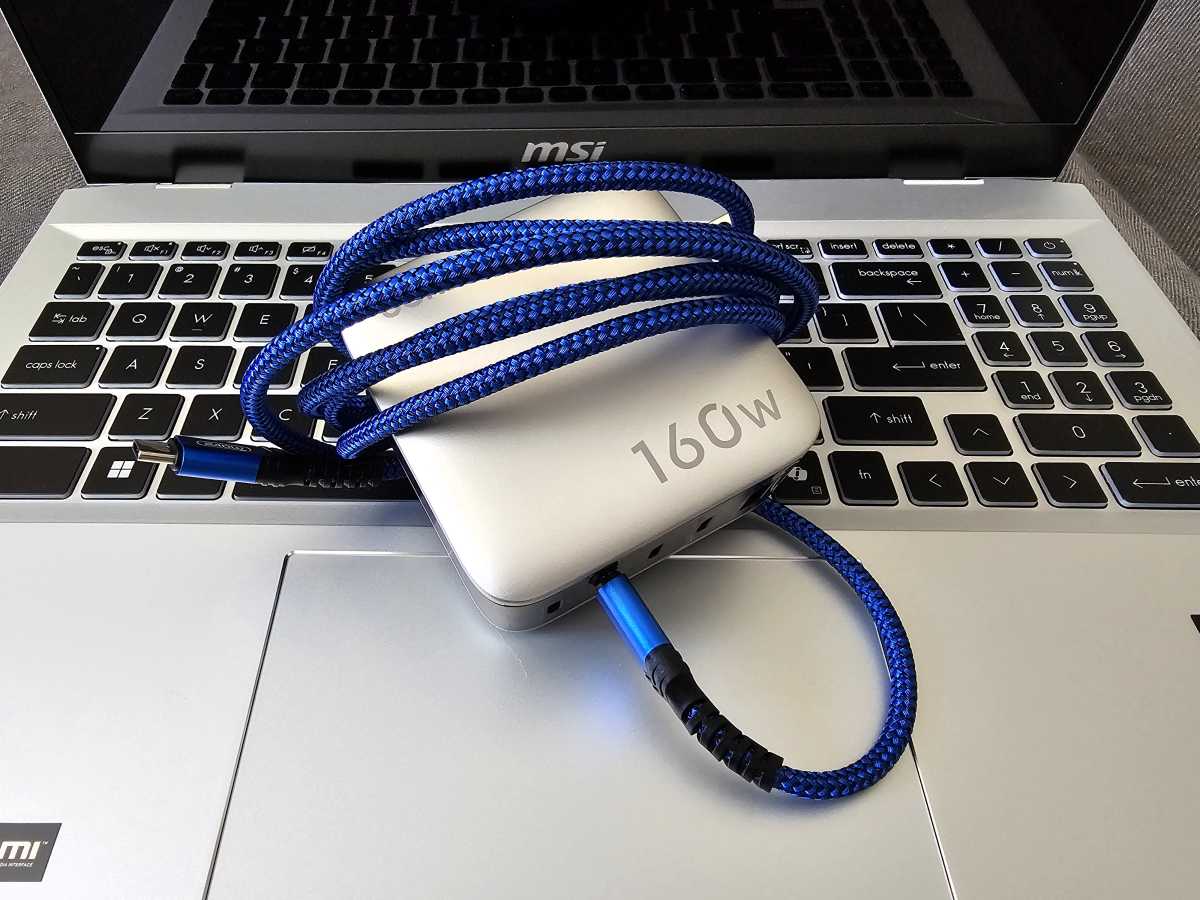
Yes, your student can pack their laptop charger inside their backpack each day. Ditto, too, for their phone charger. But why? A small, compact GaN charger like this $65 Ugreen Nexode Pro 5-port 160W charger is basically a power splitter: plug it into the wall, run whatever USB-C or USB-A power cables you need to from its five ports, and charge away.
Mark Hachman / Foundry
Why 160 watts? A laptop will probably require 100W of charging power at most, while the other ports can be used to charge phones or other devices simultaneously. Honestly, you could pick up two of these, one for the backpack and one for the dorm room.
USB-C cables
At this point, the world runs on USB-C. We do have a best USB-C cables roundup, Still, if all you want is a cable capable of enough power and enough data for whatever you need, spend $13 for a 6-foot 40Gbps Ugreen cable, or $16 for a two-pack in don’t-lose-it orange. The default length is 6.6 feet; that’s always been pretty good for me.
ANC headphones / earphones
If your student already has earbuds or earphones, great. Otherwise, many colleges recommend active noise-cancelling (ANC) ear protection as a focus aid.
This becomes a personal choice very quickly: many people prefer something like Apple’s AirPods Pro 3, which can filter out outside noise. I’ve had good luck with the $28 Anker Soundcore P30i noise-cancelling earbuds. If I’m being honest, though, something like the $45 Anker Soundcore Q20i noise-cancelling headphones work best for me, blocking out sound without me worrying about losing them.

David Price / Foundry
Optional:
Tablet: With so many textbooks going electronic, studying on a tablet (and then writing on a laptop) might make for a welcome change of pace or for scrawling electronically inked notes. I’d still call this a “wait and let’s see” purchase, though.
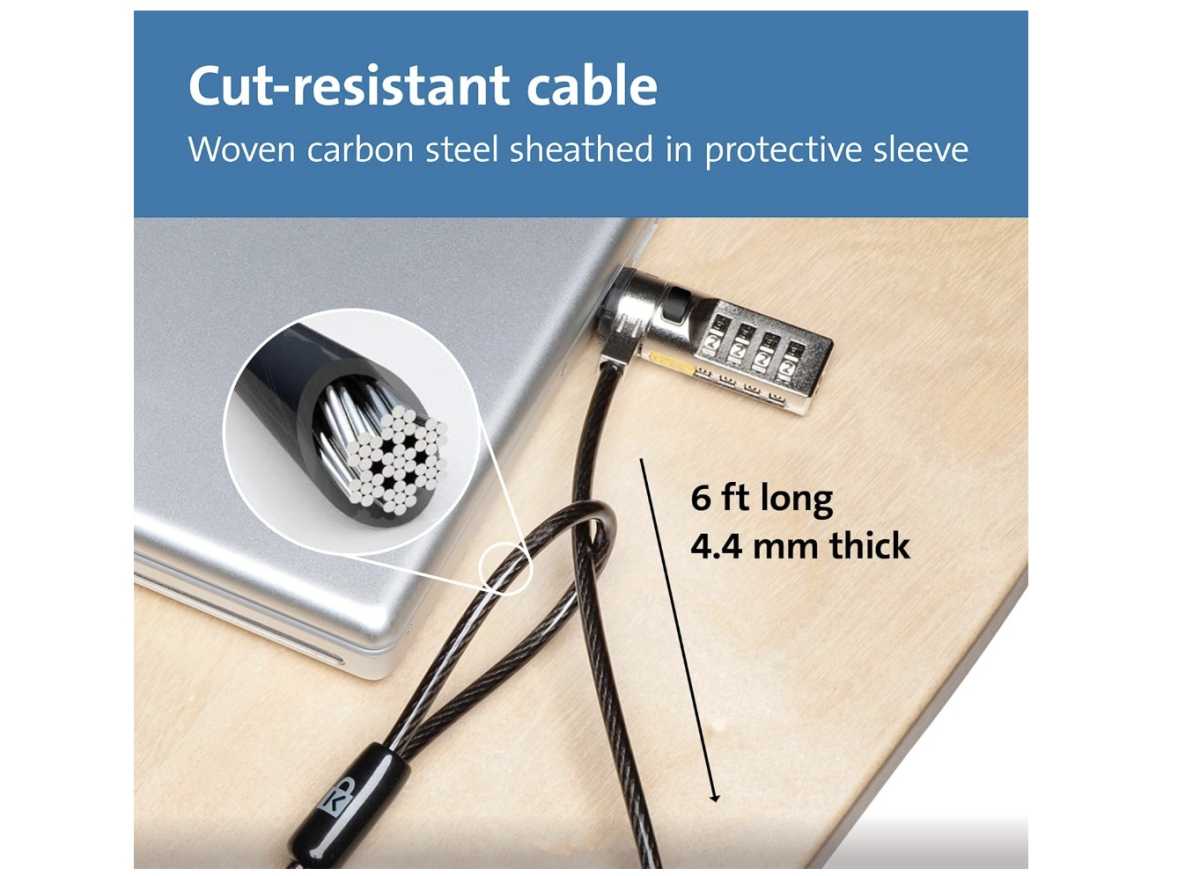
Kensington lock: I honestly don’t know if I’ll send my kid with a $27 Kensington lock to secure a laptop, or not. (Note: The laptop will need a Kensington lock port.) Loop the cable around a desk or pole, secure the clasp, and you’ve bought some added security. The cable can still be cut, but not without making it obvious the thief is stealing the laptop.
Amazon
Travel power strip: I pack a $19.99 travel power strip for business trips, but it feels a little redundant on a college campus and with other gear. Plug orientation matters, though, and that GaN charger puts a big bulky wall wart next to the plug. That travel strip makes charging more convenient.
Apple AirTag: Do you want to secure a laptop, backpack, phone or wallet with an Apple AirTag? Again, this feels like a personal choice, but attaching an AirTag ($89 for a four-pack) or similar tracker to a backpack, bike, or maybe a laptop doesn’t seem like the worst idea, provided there’s an iPhone in the family.
I live in a world where the price of technology seems like it’s always skyrocketing upward. The good news is that, compared to books and housing and tuition, it’s the cheap part of the college equation. (Sigh.) Fortunately, all of these little gadgets for school are both affordable — and useful!